Design Tokens: What They Are, the Standard, and How They Reach Code
Design tokens explained: what they are, the three tiers, naming by intent, the new W3C standard, and the pipeline that turns a token file into production code.
Read the articleOne command installs the Figma plugin, the connector for your assistant and the project skills. Then your assistant guides you through your kit and your first screen.
You adjust your pages, build new ones and change the brand in the portal editor, or in Figma with your brand kit, and the assistant turns your pages into code in your framework. The code stays with your team: Snapflow does not store it.
The screen you work from: your session, the project each file belongs to, and your brand kit inside Figma.
It connects Figma to the assistant. It has no screen and nothing to configure: it installs once and the assistant starts it when needed.
It stores your organization's kit and generates the code. Nothing to install: you reach it over the internet.
“The assistant” is your coding agent: Claude Code, Cursor, Codex or Antigravity. Snapflow works with any one that supports MCP servers and skills. You install it on your own, and it is not part of this journey.
This filters out the steps that are not yours. You can change it any time.
Which framework your project's code is generated in. An account admin picks it, once.
This is what identifies your organization. You will need it in the next step.
One command. It asks for this portal's email and password, installs everything and, at the end, invites you to open your assistant with /snapflow-hello, which guides you through the kit and your first screen, and reminds you of the portal editor.
First, quit Figma completely: that way the installer registers the plugin on its own.
Run it in the project folder where you will use the assistant.
What you will see in the terminal the first time:
If Figma was open, it ends with “One step left: Figma is open and has to be closed first”: quit it and run it again. Paths change depending on your computer.
It runs in the Figma desktop app and asks for this portal's email and password. If your project has no kit yet, open it first in the kit file. It is under Plugins → Development. If it is missing, quit Figma and run the installer again.
The plugin asks for this portal's email and password.
Once per project, for the whole team. /snapflow-hello builds it for you when you open it in your assistant: it asks whether you want to start with a base kit or with your brand, and guides you through what needs to be done in Figma.
Create a new file in the Figma desktop app, inside a team project (not in Drafts), and open it with the plugin.
The plugin asks which project the kit belongs to.
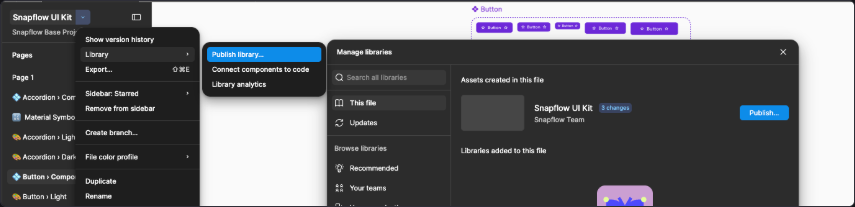
When it finishes, publish the kit as a library so the team can use it. Figma does not allow automating this, and it has to be repeated when the kit changes: the plugin lets you know.
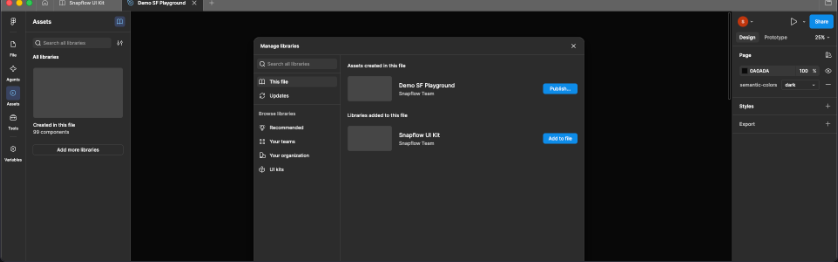
When publishing is pending, the plugin says so and prepares the change description.
To resume one that did not finish without going through /snapflow-hello (to rebuild a finished one, add --rebuild):
Open the plugin in your working file and pick its project.
Picking the project enrolls the file for the whole team.
To open it again: Ctrl/Cmd + K and search for Snapflow.
To use the components, add the published kit to your file:
A sample project to try the code Snapflow generates. The installer offers it at the end; to create another one:
The plugin checks these four things and shows you the first one missing. With all four in place, you can ask the assistant for screens.
The connector starts with it. If it is not open, the plugin says so and retries on its own.
The connector status is in the plugin bar: green means connected. If it is gray, click ⟳ to reconnect.
Opened another project and it is still gray? Run this inside the new folder:
With your account for this portal, not with the license key.
The plugin asks the first time you open a file.
If it is missing, the plugin notice has the “Download the kit” button.
The notice when the kit is missing, with its button.
You can also ask the assistant with this sentence:
The notice goes away and the plugin shows which project it is connected to.
The portal editor is the default way to adjust your pages, build new ones and change the brand. It runs in the browser: nothing to install and no Figma needed. What you publish there is what Figma and the assistant see.
Change texts, variants and spacing on the page itself, or create a new one with the kit pieces.
Colors, typography, knobs and logo, with a preview of the kit pieces.
Every kit piece in all its variants, and which brand color each part points to.
Every publish is kept in the version history: you can view an earlier one and go back to it. To bring a page into your application's code, the assistant uses what the steps above install.
All of them run through npx: there is no need to install the installer.
npx @snapflow-labs/onboard [--design figma|none]The full setup: installs or updates kit access, the snapflow command for the terminal and the skills and, if you work with Figma, the plugin and the connector. At the end it offers to create the playground and, if you work with Figma, invites you to open your assistant with /snapflow-hello. --design answers the Figma question in advance, and the answer is saved.npx @snapflow-labs/onboard install [--design figma|none]The same as the previous one, with a name.npx @snapflow-labs/onboard connect [--client claude,cursor,codex,antigravity]Updates the connector and registers it in your assistant (Claude Code, Cursor, Codex or Antigravity) in the folder where you run it, with the project skills. To add an assistant or another folder without installing again.npx @snapflow-labs/onboard kit [--rebuild] [--status]Only the kit, in the open Figma file. /snapflow-hello usually does it; this is for resuming one that did not finish or, with --rebuild and your confirmation, rebuilding it. With --status it only reports whether the project already has its kit.npx @snapflow-labs/onboard logoutRemoves the session and license key from this computer.npx @snapflow-labs/onboard playground new [path] [--framework react|vue] [--skip-install]Creates a project to preview the views Snapflow generates.npx @snapflow-labs/onboard playground dev [path]Serves that project so you can see it in the browser.npx @snapflow-labs/onboard playground update [path] [--dry-run] [--force]Pulls the latest base project without overwriting what you wrote.npx @snapflow-labs/onboard playground list [--prune] [--offline]Lists the playgrounds created on this machine and their status. With --offline it does not ask the service.npx @snapflow-labs/onboard --helpShows the help.--lang en|esWorks with any command: the language of the messages for that run.Design tokens explained: what they are, the three tiers, naming by intent, the new W3C standard, and the pipeline that turns a token file into production code.
Read the articleA practical guide to building design systems that actually scale, from token architecture to governance. Learn the infrastructure-first approach used by enterprise teams.
Read the articleDesign system tools each manage one slice; infrastructure owns the result. The categories, where they break, and how to choose for enterprise teams.
Read the articleWhen you're in, you connect your Figma and your repo, and the system takes your brand.