
If you are comparing figma to code tools, the good news is that all four serious ones work. The bad news is that almost every comparison measures the same thing: how clean the code of one screen comes out. That screen comes out fine in all of them. The problem shows up on the fourth, when the button comes out different again, and there the useful question changes: not which tool, but what it is reading. This is the map, tool by tool, with what each one does best and what none of them does.
The axis that decides: pixels or components
There are two ways to turn a Figma frame into code. The first reads the frame as a drawing: rectangles, text, sizes and colors. It produces new code that looks like the design, and every screen brings its own version of the button. The second reads the frame as a composition of named components with variants, and writes the screen with the pieces that already exist in the repo. We go deep on this in figma to code: why the code never matches the design.
All four tools in this comparison know the second path is the right one, and each has a mechanism to get closer to it: a component mapping, a tagging step, an MCP server. The difference is how much of that work the tool does and how much stays with your team. With that in mind, here are the four.
The four tools, honestly
Anima
It is the most installed design to code plugin in Figma. It turns a frame into React, Vue or HTML with CSS or Tailwind, readable and typed, and its team edition lets you map what it exports to components you already have in the code. Where it wins: speed. For getting a landing page, a prototype or the first version of a screen out with minimal setup, it is hard to beat. Its limit: the mapping to your components is yours to define and maintain, and whatever is not mapped comes out as new markup. Two identical buttons can come out as two different buttons if the design did not come from a library.
Locofy
It produces perhaps the cleanest structure of the group: named components that follow your layers, consistent flexbox layout and output in React, Vue, Angular, Next.js and mobile frameworks. It has a one click mode and a classic mode where you tag elements by hand (this is a button, this is a text field) before generating. Where it wins: when you want code a junior developer can read, and when you ship to several frameworks. Its limit: the tagging is, in practice, the work of telling the tool which component each thing is. It is the context a design system would give it for free, and it has to be repeated on every screen that lacks it.
Builder.io Visual Copilot
It uses a trained model to take designs to React, Vue, Svelte, Angular and other frameworks in one click, and it maps Figma components to the ones in your repository, so it can reuse what you already have instead of generating it again. It plugs into AI code editors so the design reaches the repo through your assistant. Where it wins: fitting into a codebase that already exists. Of the three that generate, it is the one that leans most on your components, and that is the right instinct. Its limit: the result is as consistent as the mapping it manages to resolve, and whatever it does not recognize it invents like any other generator.
Figma Dev Mode
It is not a generator: it is Figma's native inspection and handoff, and today it is the most interesting piece of the picture for two reasons. Code Connect lets you link a Figma component to its real component in the code, so the panel shows your code and not an approximation. And the Dev Mode MCP server exposes the structure of the file, with its variables, styles and component properties, to an AI agent, which writes against data instead of against a screenshot. Where it wins: giving the agent what it needs to read; it is the closest a Figma tool gets to the component side. Its limit: it exposes what is in your file. If your Figma library and your code components are not the same, Dev Mode shows that precisely, but it does not fix it. And the Code Connect link is written and maintained by your team, component by component.
Figma to code tools compared
| Tool | What it reads | What it produces | Your components | Best for |
|---|---|---|---|---|
| Anima | The frame | React, Vue, HTML | A mapping you define | A fast, readable screen |
| Locofy | The frame, tagged | React, Vue, Angular, Next.js and mobile | Through the tagging | Clean structure across frameworks |
| Builder.io Visual Copilot | The frame, with AI | React, Vue, Svelte, Angular and others | A mapping to your repo | Fitting into an existing repo |
| Figma Dev Mode | The file | Data for your agent, over MCP | Code Connect, by hand | Giving the agent structure |
| Snapflow (not a plugin) | The design system | The same components in Figma and in React, Vue 3 or Angular | They are the system | Having nothing to translate |
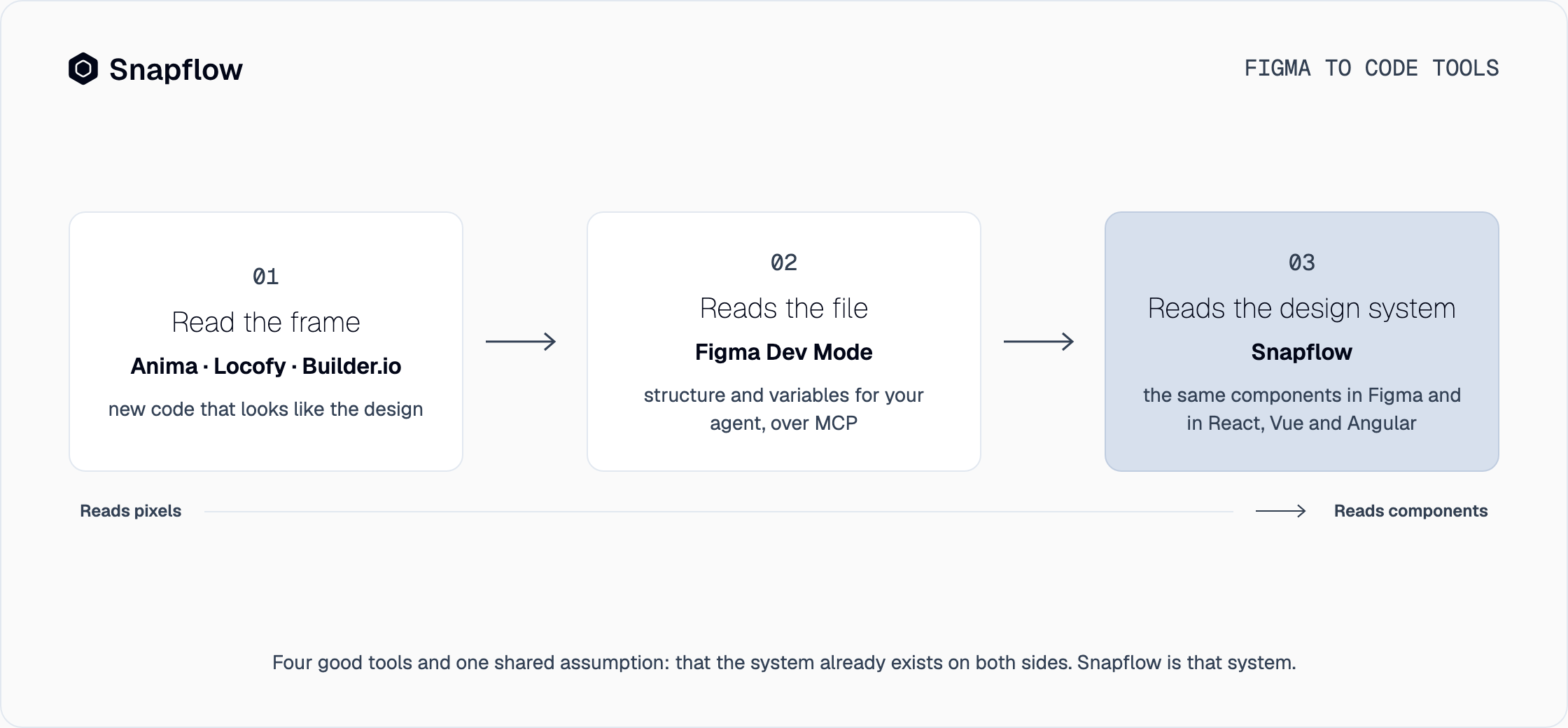
Read it down the "Your components" column and the pattern appears. Every tool has a way to reach your components, and in all four that bridge is built and maintained by your team: a mapping, a tagging step, a link. In other words, they assume the design system already exists on both sides and matches. That is the part that is almost never true.
What none of them does
There are four things none of the four solves, and it is worth knowing before you choose:
- They do not bring the components. All of them read what is in your file and in your repo. If the Figma button and the React button do not come from the same definition, no tool can make them match: at best it shows you the distance.
- They do not propagate a change. When a token changes, the frame gets exported again or the mapping gets reviewed again. The drift comes back with every change, on every screen already generated.
- They do not verify the result. None of them compares the shipped screen with the design or checks in CI that the code uses only tokens and components from the system. That review stays visual.
- They do not output three frameworks from the same definition. Several generate React, Vue and Angular, but each output is a different translation of the same drawing, not the same component compiled to three frameworks.
None of this is a flaw in the tools. They solve the output step, and the problem sits one step earlier: in whether there is a system to read.
Where Snapflow fits
Snapflow is not the fifth tool in the table, and it does not compete for the same spot. It is the design system those tools assume you already have: tokens, components and governance rules already built, which you customize with your brand in seven steps and which live on both sides at once. In Figma, as the library the plugin installs, to design screens and flows with the real components. In your repo, as React, Vue 3 or Angular packages that your assistant reads over MCP to write the screen with those same pieces. That is why we call it an agentic design system: Snapflow is not the agent, it is what the agent reads.
With that solved, the figma to code step changes in nature. There is no frame to translate: there is a composition that already exists in code. Verification closes the loop, because the screen is compared with the design and adherence is checked in CI, with no model in between. And when a token changes, it changes once and reaches Figma and the code. This is how the product works, step by step.
Figma is still where design happens, and Dev Mode with its MCP is good news for this approach: the more structure the agent reads, the better. If your team uses Anima, Locofy or Builder.io and they work for you, you can keep using them on top of a real system. Most teams find that, with the kit in Figma and the design system in the repo, their own assistant already does the exporter's job. The full landscape of the category is in design system tools.
How to choose, in three questions
- Do you have the same components in Figma and in the code? If yes, any of the four will serve you, and Dev Mode with Code Connect is the best starting point. If not, no output tool will make up for it: start with the system.
- How many screens will you generate? One or two: Anima or Locofy, for speed. Dozens, in a living repo: Builder.io or your own assistant reading the system over MCP.
- Who verifies the result? If the answer is "we eyeball it", the real cost of the tool is not the license. It is the reconciliation.
Frequently asked questions
What is the best figma to code tool?
It depends on what you need to get out. Anima for a fast, readable screen, Locofy for the cleanest structure across several frameworks, Builder.io Visual Copilot for fitting into a repo that already exists and Figma Dev Mode for giving your own agent structure. All four read the frame or the file; none brings the design system that makes Figma and the code match.
Are there free figma to code tools?
Yes. Anima and Locofy have free plans with a limit on generations, and Dev Mode is included in the Figma seats that cover it. They are good for evaluating and for getting a screen started. What no free plan solves is consistency across screens, which depends on the system underneath and not on the plugin.
Does Snapflow replace Anima, Locofy or Builder.io?
It does not compete for the same spot. Those tools turn a frame into code; Snapflow delivers the design system that lives in Figma and in the code, with your brand, so there is nothing to convert. You can keep using them on top of that system, although with the kit in Figma and the MCP in the repo your own assistant is usually enough.
Does Snapflow work with the Figma Dev Mode MCP?
They are complementary and an agent can use both: the Figma MCP gives it the structure of the file you are looking at and the Snapflow MCP gives it the tokens, components and variants of the design system in your repo's framework. The more structure the agent reads and the fewer pixels, the better the screen comes out.
Which figma to code tool supports React, Vue and Angular?
Locofy and Builder.io Visual Copilot generate all three, each as its own translation of the frame. Snapflow compiles the same design system to React, Vue 3 and Angular from the same definition; each design system comes with one framework of your choice and the others are added as an add-on.
Try it with a screen of your own
The shortest comparison is with your own screen: design it with your brand kit in Figma and ask your assistant for it. Snapflow is in waitlist access and we release seats in batches, in order of arrival. Join the waitlist or see the pricing.